Customizing A Value Source Element
The Formula is one of the most commonly used elements. It lets you create formulas that use values entered into previous input fields by your website visitors and shows the calculated results. You can also incorporate results from other formulas.
Element settings
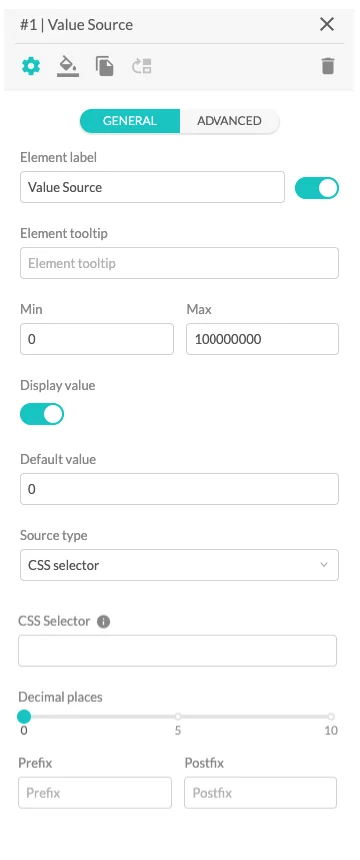
Element settings
-
The Element Label input field lets you name your element. The toggle controls whether the label is visible or hidden.
-
The Element Tooltip field allows you to provide additional context or explain what data is being automatically retrieved. Once enabled, a small info icon appears next to the element title.
-
The Min and Max fields define the allowed numeric range for the sourced value. These limits help prevent invalid or unexpected data from being applied.
-
The Display value toggle controls whether the auto-sourced value is visible in the calculator interface or hidden from the user.
-
The Default value field sets a fallback value that is used if the external source is unavailable or returns an empty result.
-
The Source type selector determines where the value will be retrieved from. You can choose between:
- Global JavaScript object path
Provide a dot-notation path to access a value from a global JavaScript object (e.g., window.productOptions.width or window.productMetafields.width). - CSS selector
Provide a valid CSS selector to target the HTML element from which the value should be read (e.g., #price, .product-dimension, div > span). - URL query parameter
Provide the name of the query parameter to read from the page URL (e.g., width in ?width=20). When reading the values, any prefixes or suffixes attached to the numeric value (e.g., cm, $) are automatically stripped.
- Global JavaScript object path
-
The Global JavaScript object path / CSS selector / URL parameter field specifies the exact path, selector, or parameter name used to retrieve the value.
-
The Decimal Places slider lets you choose how many numbers are visible after the decimal point for a more accurate result.
-
The Prefix field lets you choose what you want to be written before the result.
-
The Postfix field lets you choose what you want to be written after the result.
You can choose between three source types:
Global JavaScript object path
Retrieve a value from a global JavaScript object using dot notation (e.g., window.productMetafields.width).
This is ideal for integrations with Shopify metafields, product configurations, or other dynamic data exposed via window objects.
CSS selector
Extract a value from an existing HTML element on the page using a valid CSS selector (e.g., #id, .class, div > span).
This is useful when you need to read default values already rendered in the DOM, such as product prices or selected options.
URL query parameter
Read a value directly from the page URL by specifying the query parameter name (e.g., ?width=20).
This method is commonly used for pre-filled calculator inputs in marketing campaigns or shared configuration links.
By connecting a field to a Value Source, you ensure automatic data synchronization and eliminate duplicate inputs.
How to use the Value Source element
The Value Source element allows you to automatically populate a field by retrieving data from an external source instead of requiring manual user input. It ensures dynamic synchronization between your calculator and external page data.
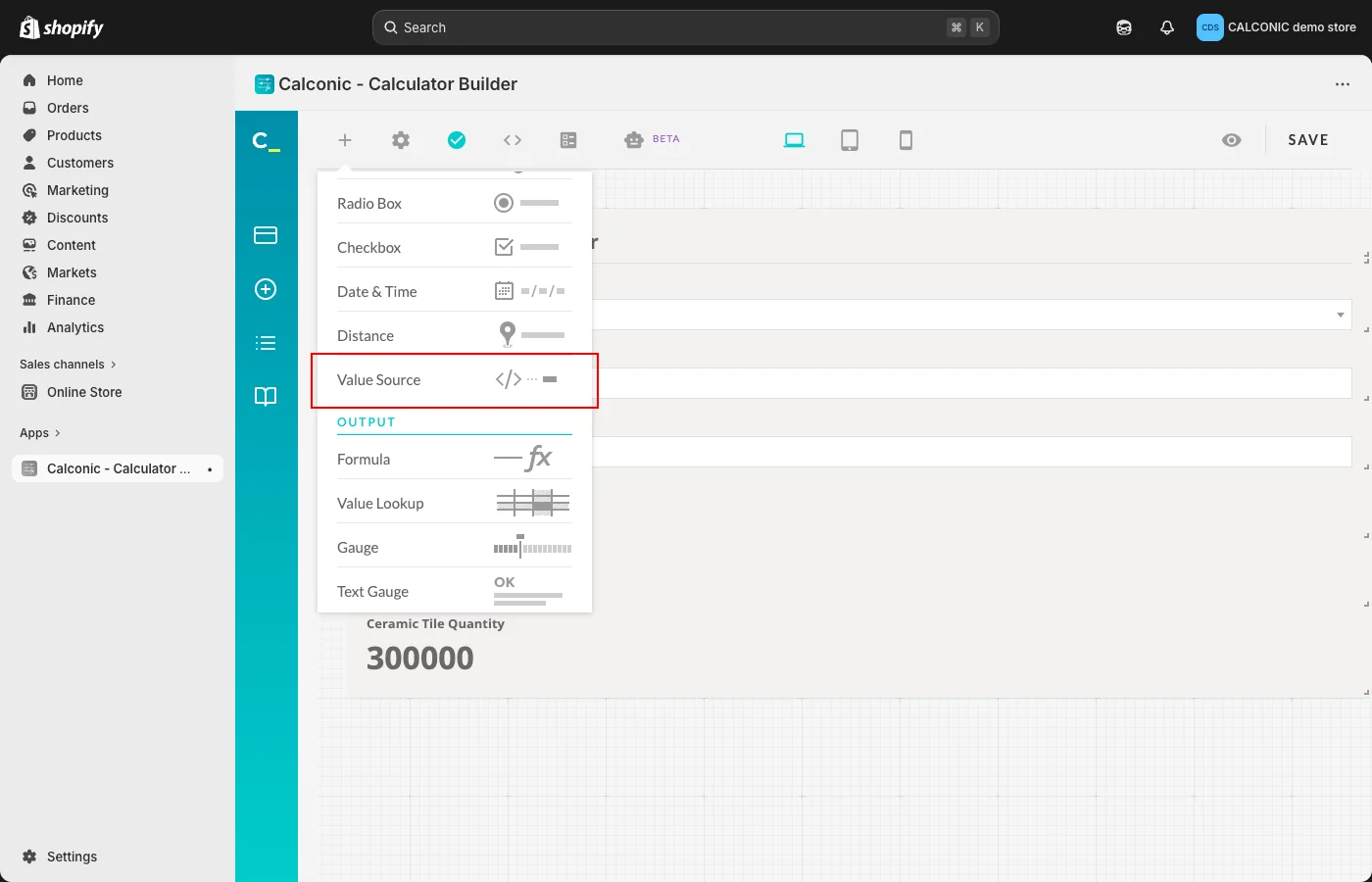
Step 1: Add the Value Source element
Insert the Value Source element into your calculator and configure its label (for example, Ceramic Tile Width (cm) or Ceramic Tile Length (cm)).
Step 2: Select the Source Type
In the Source type dropdown, choose where the value should be retrieved from. You can select one of the following options:
- Global JavaScript object path
- CSS selector
- URL query parameter
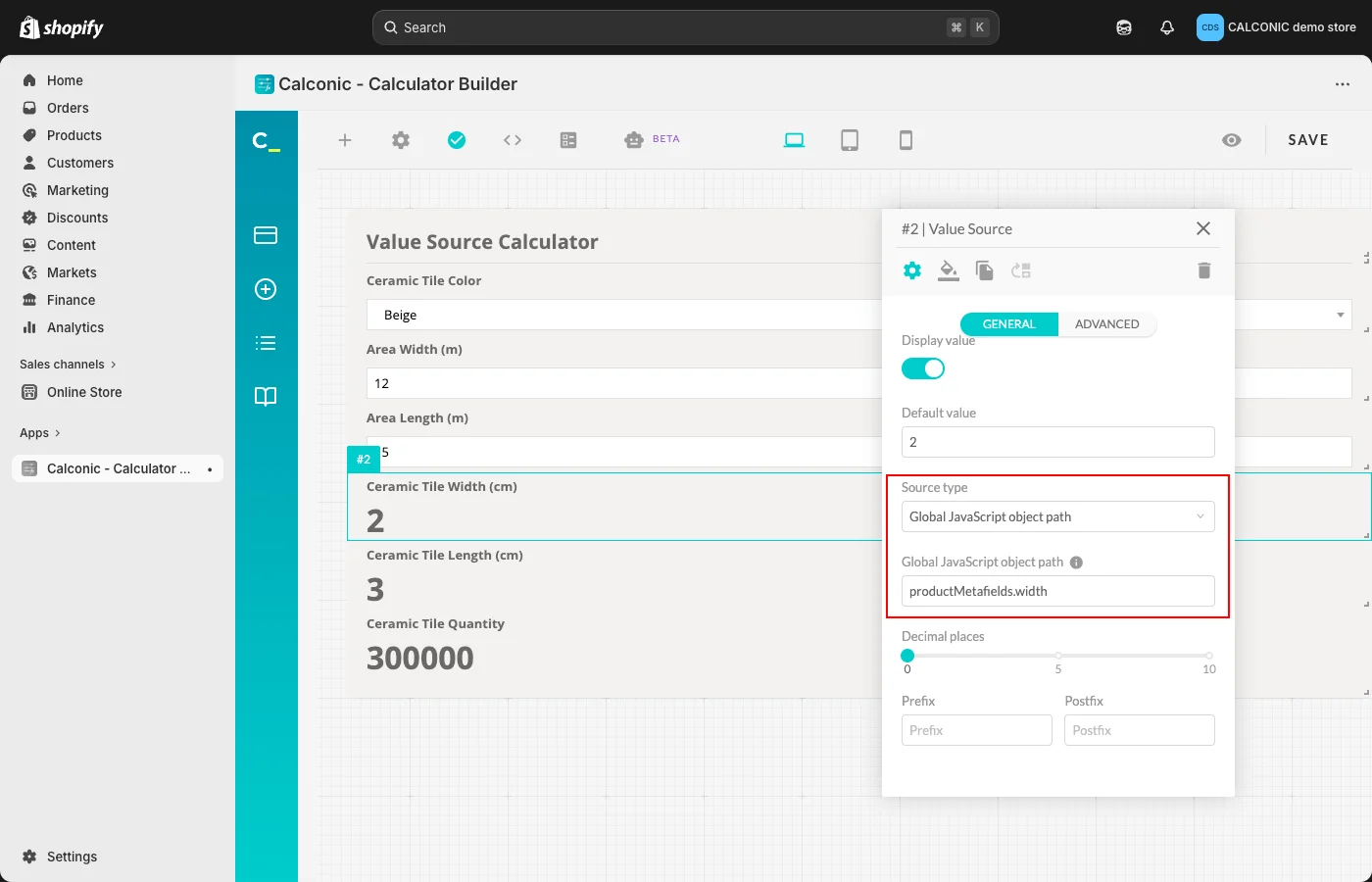
Step 3: Enter the Path, Selector, or Parameter Name
Depending on the selected Source type, enter:
- A dot-notation path (for example: window.productMetafields.width)
- A valid CSS selector (for example: .product-price)
- A query parameter name (for example: width)
Step 4: Use the Value in Calculations
Once connected, the Value Source element behaves like a normal numeric field and can be used in formulas.
Example:
Tile Area (m²) = (Width / 100) × (Length / 100)
Because the values are automatically sourced, they update instantly whenever the external data changes (for example, when product metafields are updated or a different product is selected).
Example code snippet required to output the product metafields into a Global JavaScript object on the product detail page:
<script>
window.productMetafields = {
{% for metafield in product.metafields.custom %}
"{{ metafield[0] }}": "{{ metafield[1].value }}"{% unless forloop.last %},{% endunless %}
{% endfor %}
};
</script>
This snippet must be placed at the beginning of the Shopify theme’s product page Liquid template.
The product page HTML will generate a Global JavaScript object similar to this:
<script>
window.productMetafields = {
"width": "20 cm",
"length": "30 cm"
};
</script>
Then configure the Value Source fields as:
Width field:
Source type: Global JavaScript object path
Path: window.productMetafields.width
Length field:
Source type: Global JavaScript object path
Path: window.productMetafields.length